Skip to content
Maru
Two women laugh over a laptop and drawings at a sidewalk café table.

How does Maru work?

All your work, one address: you turn a message into a task, a meeting or a plan item, finished work moves forward on the board, and your client approves without an account. Start with these steps, then look at each module in detail.

Type a message. The card’s ready.

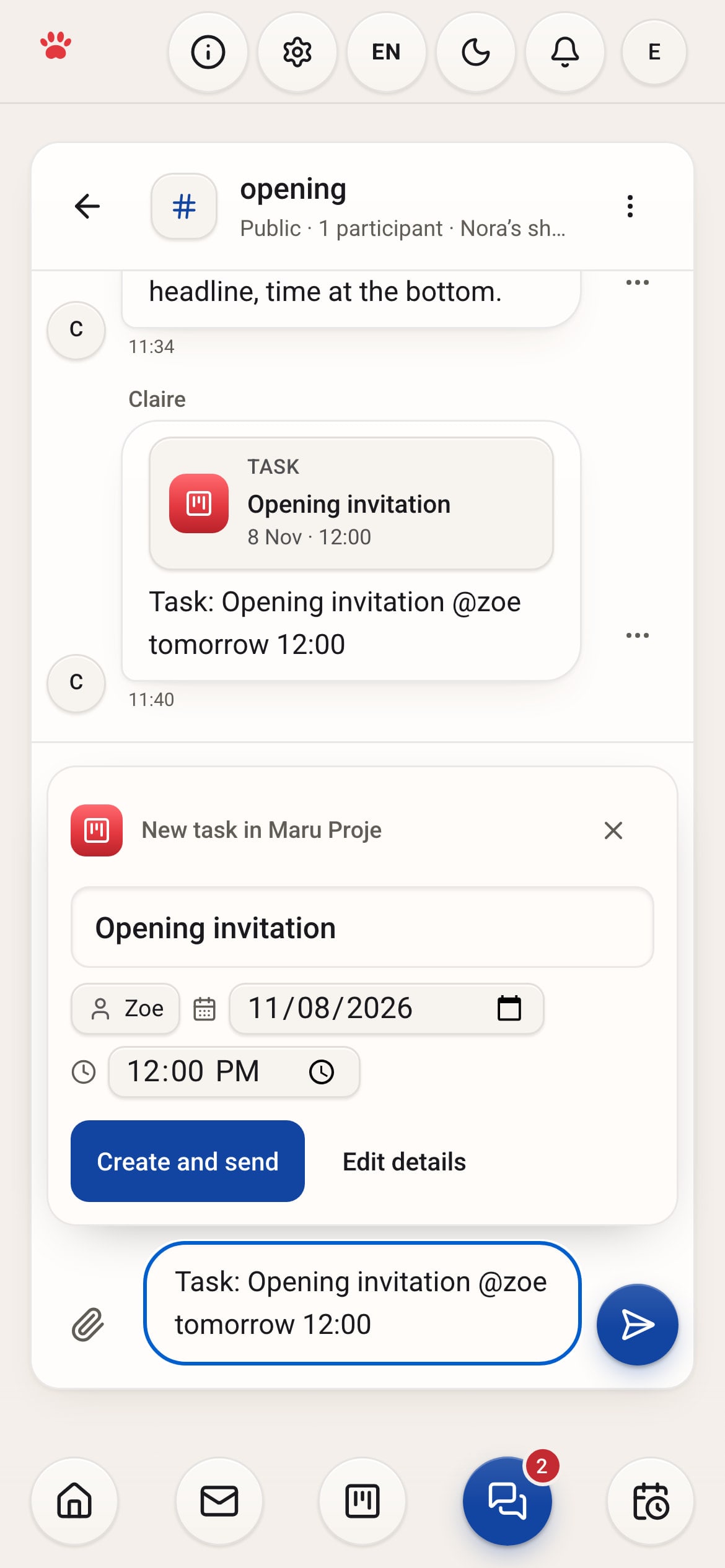
Start a message with “Task:”. A card is prepared with the task, its owner and its due date. Fix anything with “Edit details”; no task is created until you press “Create and send”.

No copying. It’s on the board.

Press “Create and send” and the task opens on the Proje board, with its owner and due date already on the card.

Type “Meeting:”. It’s on the calendar.

Start a message with “Meeting:” and a card is prepared with the person and the time. Check it, then press “Create and send”. The meeting lands on the calendar with its Meet link, and the invitees get an email.

Finish in Plan. The card moves in Proje.

Finished something in your plan? Check it off. The linked card moves forward on the Proje board too, so there’s nothing else to update.

Your client approves. No sign-up.

When work needs the client’s yes, send them a link. They see it without creating an account, then approve it or request changes. You get their decision as a notification.

Six modules, one app.

A gray-bearded printer checks a cobalt and red poster at a print studio table.

Maru Proje

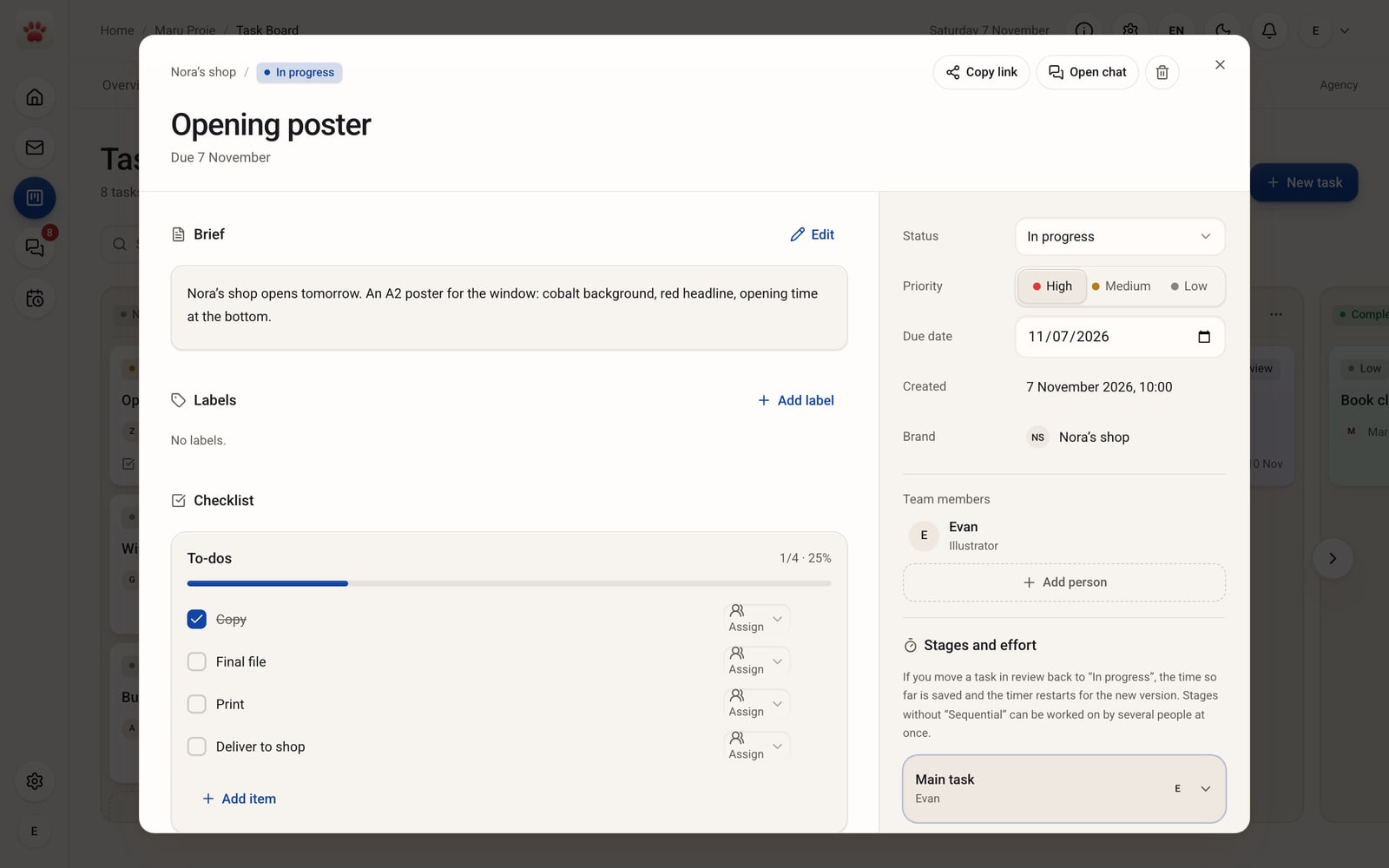
See who’s doing what and when, on one board. Each column is a stage, each card a piece of work. Drag a card and the work moves on. Files, comments and to-dos stay on the card.

  • Give every task an owner and a due date, and see who has it.
  • Keep files, the checklist and comments together on the task card.
  • Send your client a link. They approve or request changes without an account.
Maru Proje task card: the Opening poster for Nora’s shop, with the brief and a four-item checklist where Copy is checked; Evan is assigned.
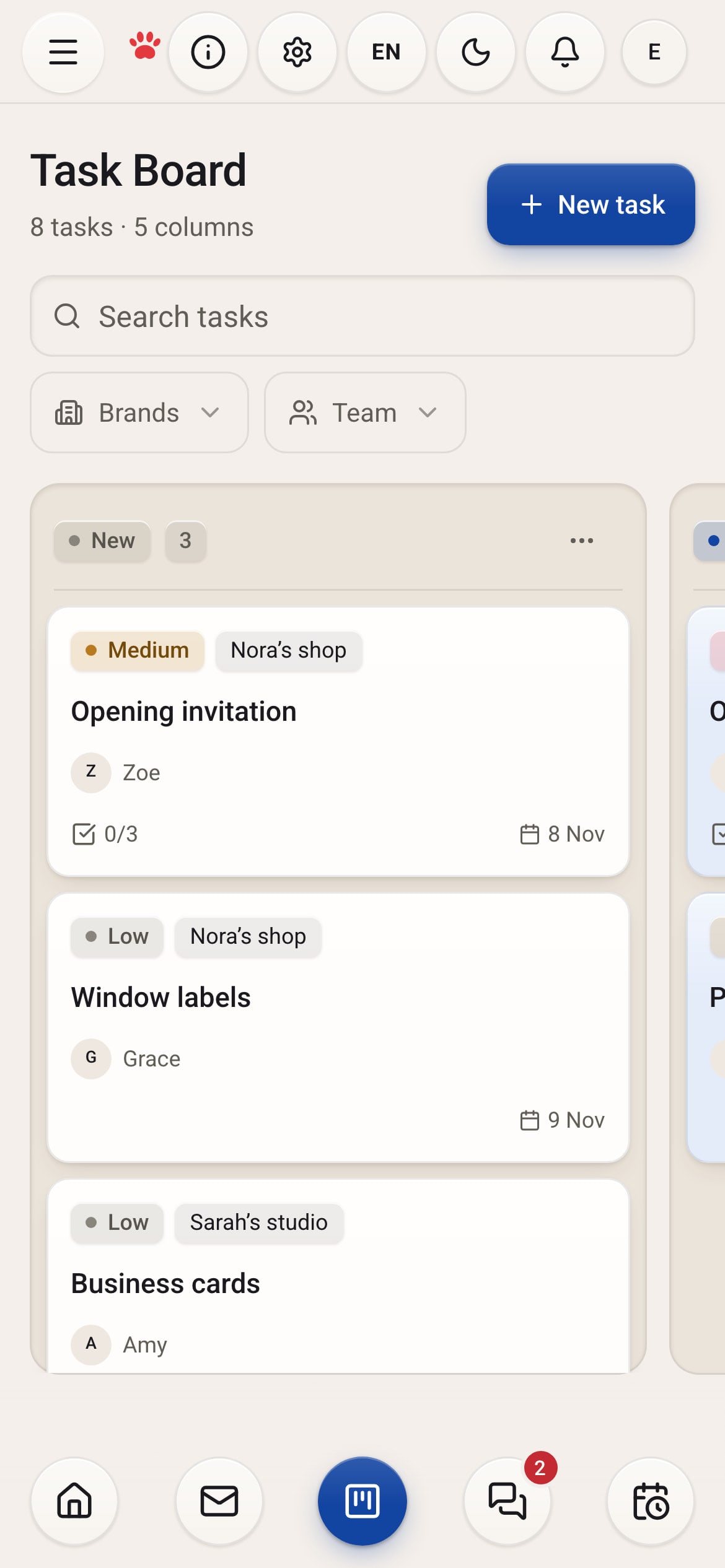
Maru Proje board on a phone: the Opening invitation, Window labels and Business cards in the New column.
Two women laugh over a laptop and drawings at a sidewalk café table.

Maru Chat

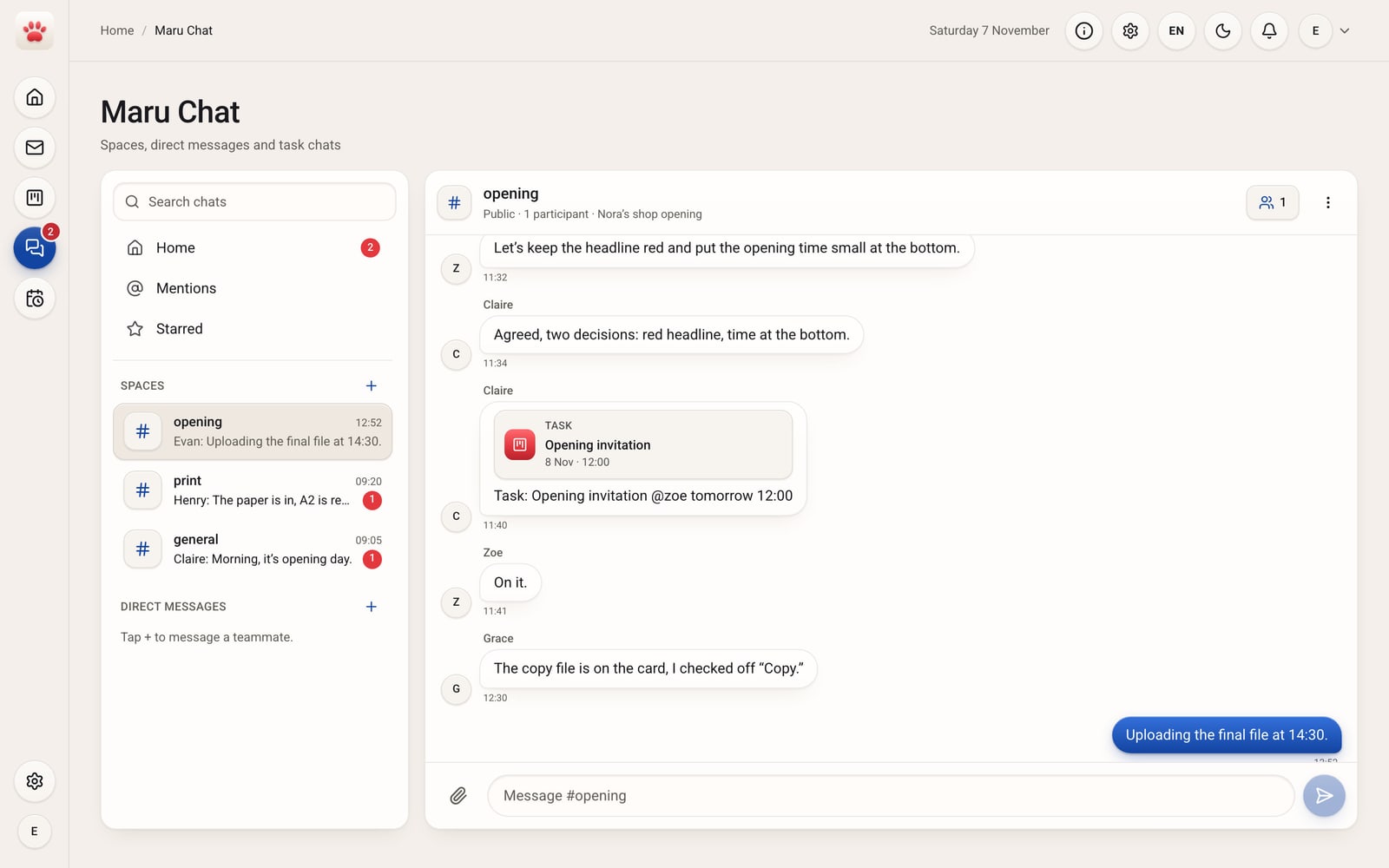
Work you talk about doesn’t get lost in the talk. Open a shared space for each topic and message people directly when you need to. When a message turns into work, make it a task or a plan item without copying anything.

  • Start a message with “Task:”, “Plan:” or “Meeting:”. A card is prepared with the person and time; check it, then tap “Create and send”.
  • Mention someone with @, share files, star important messages.
  • Keep the talk about a task in that task’s own chat.
Maru Chat, the #opening space: Claire and Zoe write down two decisions for the poster, with an Opening invitation task card on a message.
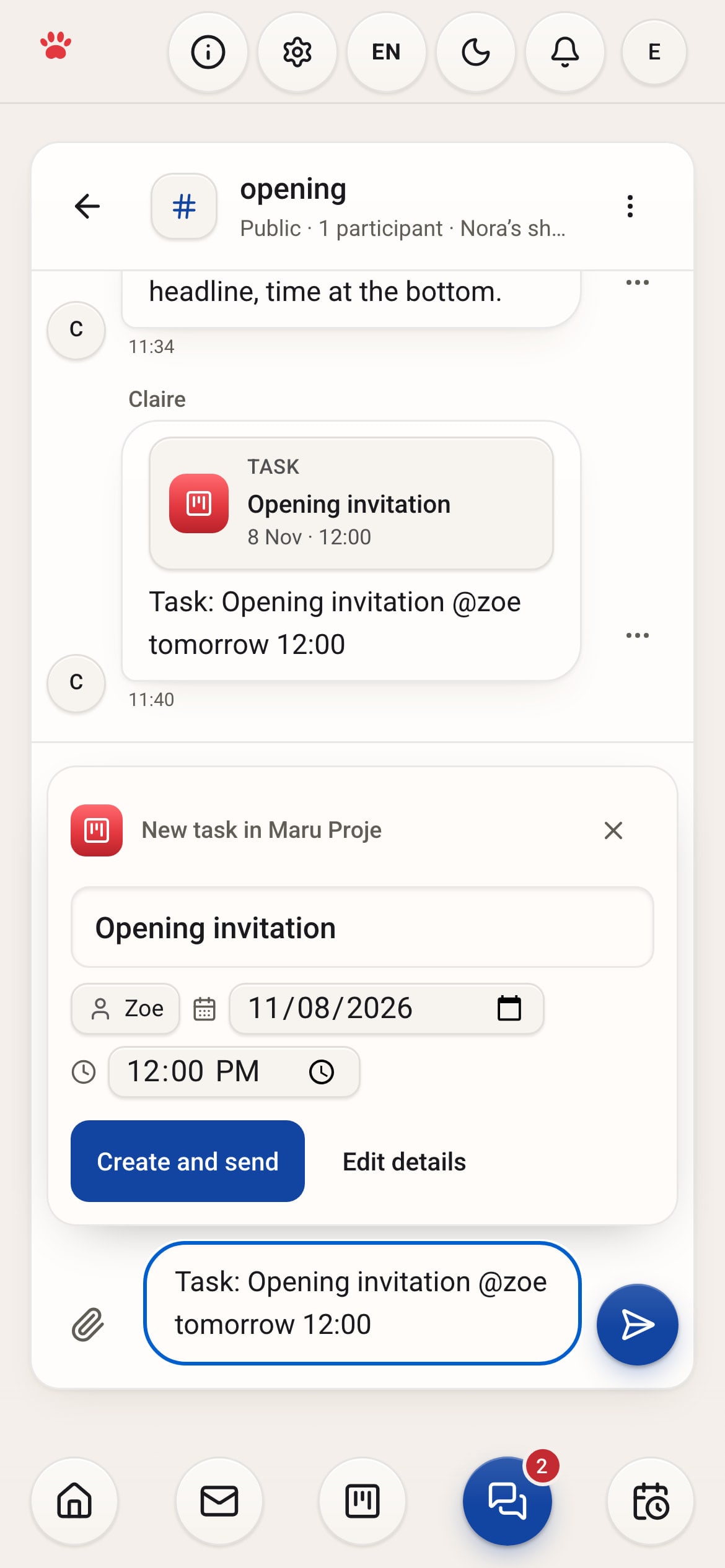
Maru Chat on a phone: the message box reads “Task: Opening invitation @zoe tomorrow 12:00,” with a prepared card for Zoe above it and a Create and send button.
A bearded man in a mustard beanie and denim jacket sketches at a coffee bar, with a barista behind him.

Maru Plan

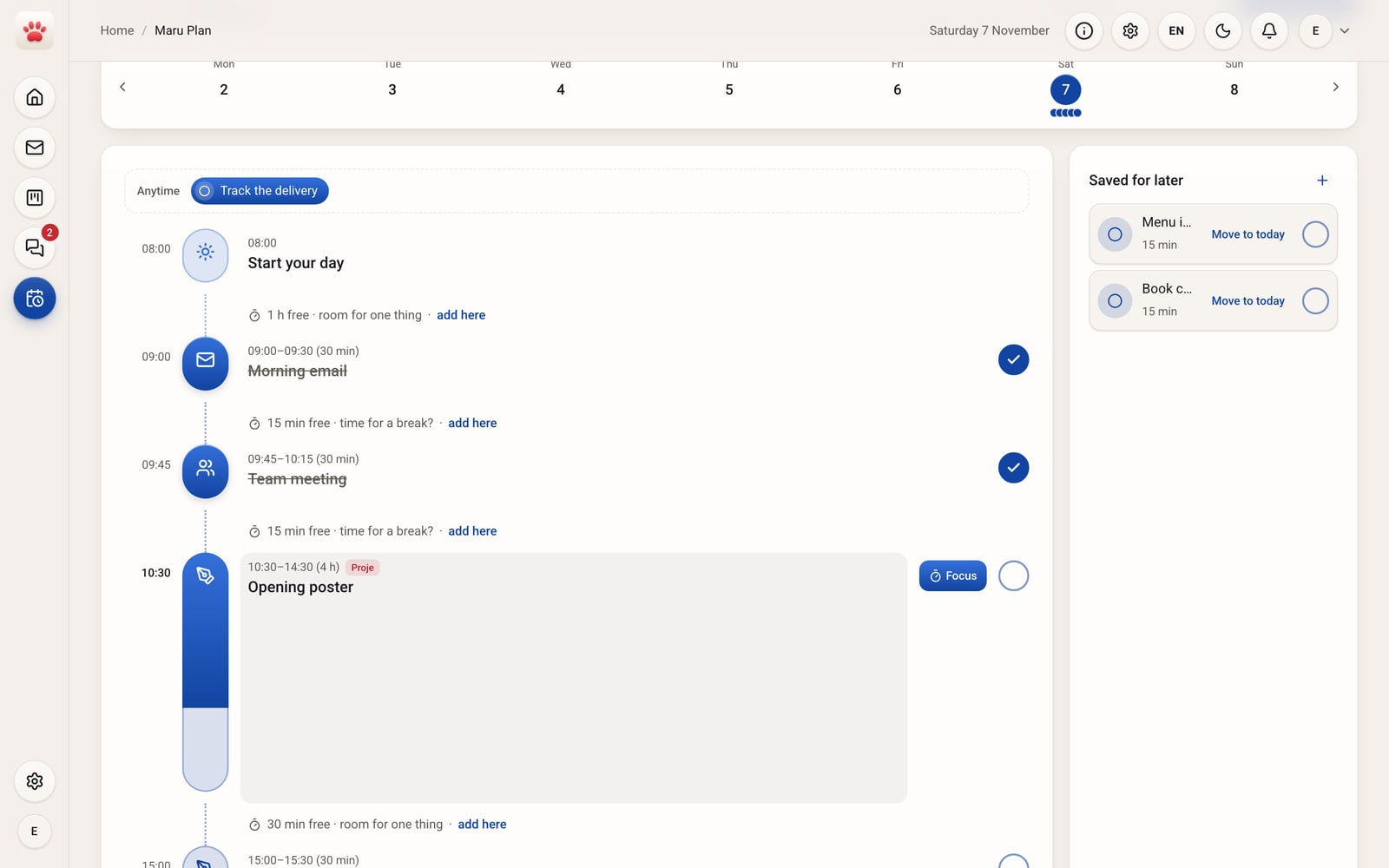
Know by morning what today has room for. Place your to-dos with how long they’ll take, and the free gaps show up. Your Proje tasks sit in the same plan.

  • Work due today waits for you in the “Anytime” row.
  • Put anything without a set time in “Saved for later”, and press “Move to today” when you’re ready.
  • Check off what you finish, and its card in Proje moves forward too.
  • Press “Add meeting” on the calendar and list the invitees; the Meet link comes with the meeting.
Maru Plan, My day: morning email and the team meeting are done; the Opening poster runs from 10:30 to 14:30, tagged Proje, with Saved for later on the side.
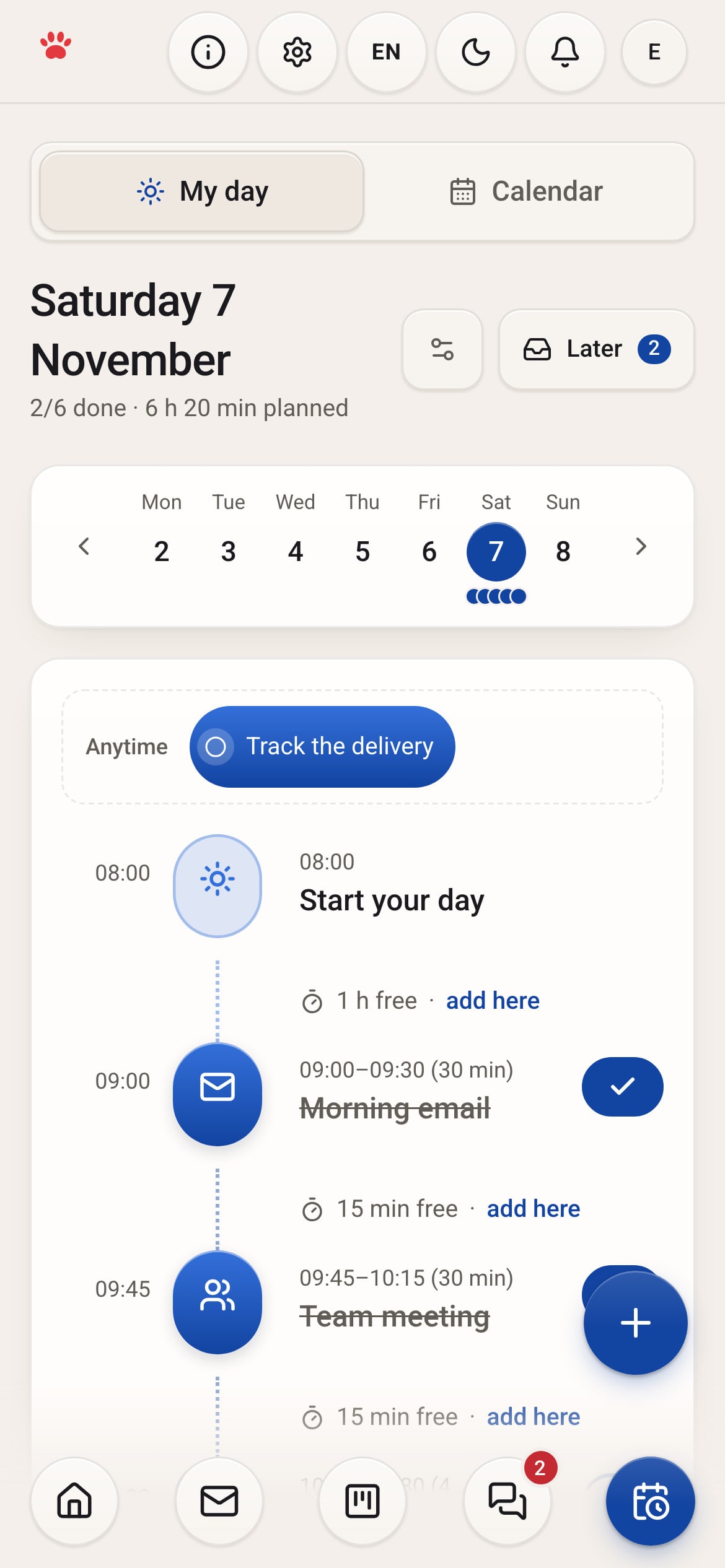
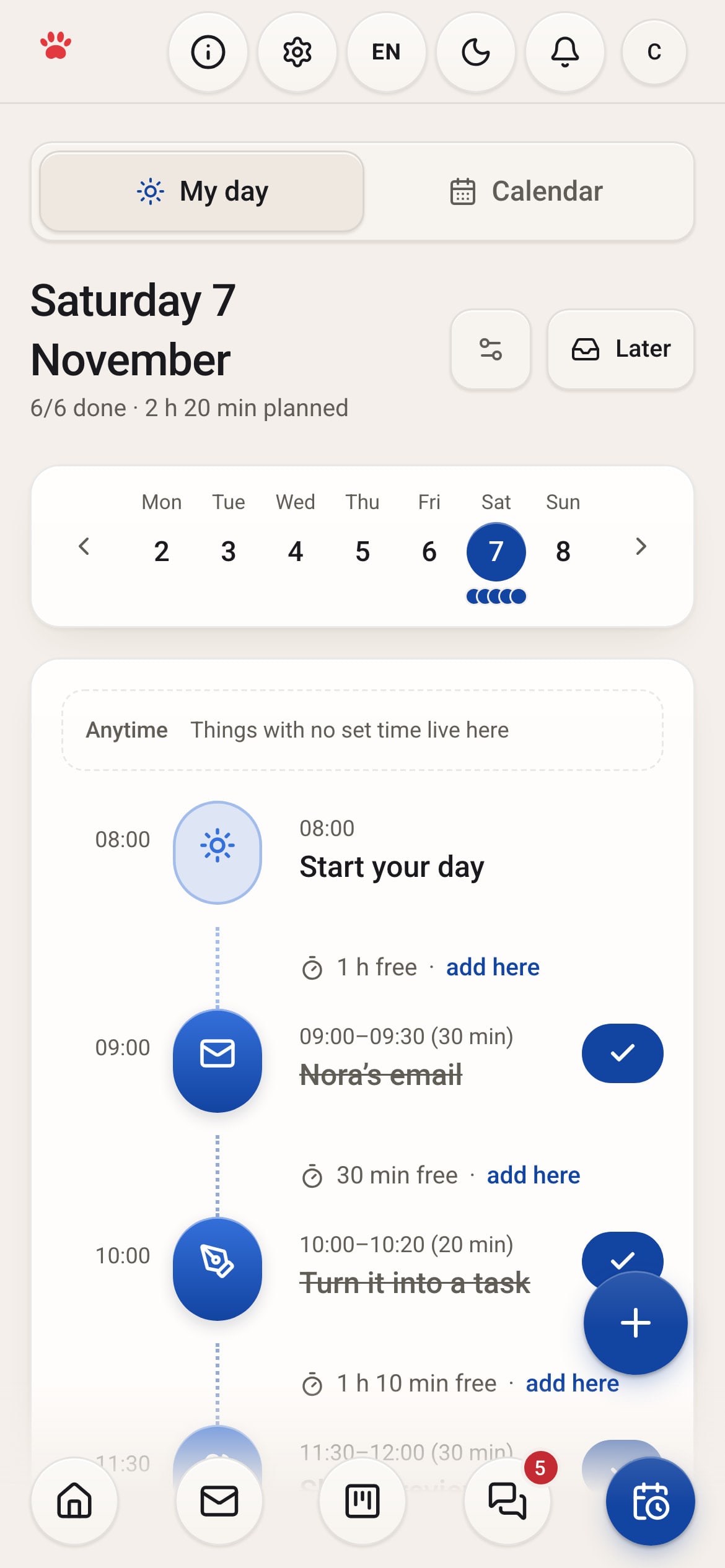
Maru Plan on a phone: the schedule for November 7, with two items done.
Four friends laugh around a café table at dusk, laptops closed, with tea and beer on the table.

Maru Meet

Video meetings inside Maru. Open the meeting from the calendar and the invitees get a link. Share your screen, chat, raise a hand. Your client joins without an account and enters the room when you let them in.

  • Press “Add meeting” on the calendar; the meeting link and the invitation email go out on their own.
  • Someone from outside types their name and lands in the waiting room; they join when you admit them.
  • Share your screen, drop a note in the chat, raise a hand. Blur your background.
  • With your camera off, your Maru profile photo shows. Open the meeting’s board with one button.
A gray-haired woman in an apron smiles as she shows a poster sketch to her team at a table covered with sketches and a laptop.

Maru Pano

A canvas where ideas don’t scatter. Put notes, images, colors and links side by side; the team works on it at the same time. Draw a mind map, vote, present. When a note becomes work, it moves to Proje with one tap.

  • Drag and drop note, image, file, link and color cards; gather them in columns.
  • In a mind map, Tab opens a branch and Enter adds a sibling.
  • Pin a comment, mention a teammate with @, and go back to an earlier version.
  • In a meeting, set a timer, vote on notes and walk through frames like slides.
  • Select a note and press “Turn into task” to make a Proje card; send your client a read-only link.
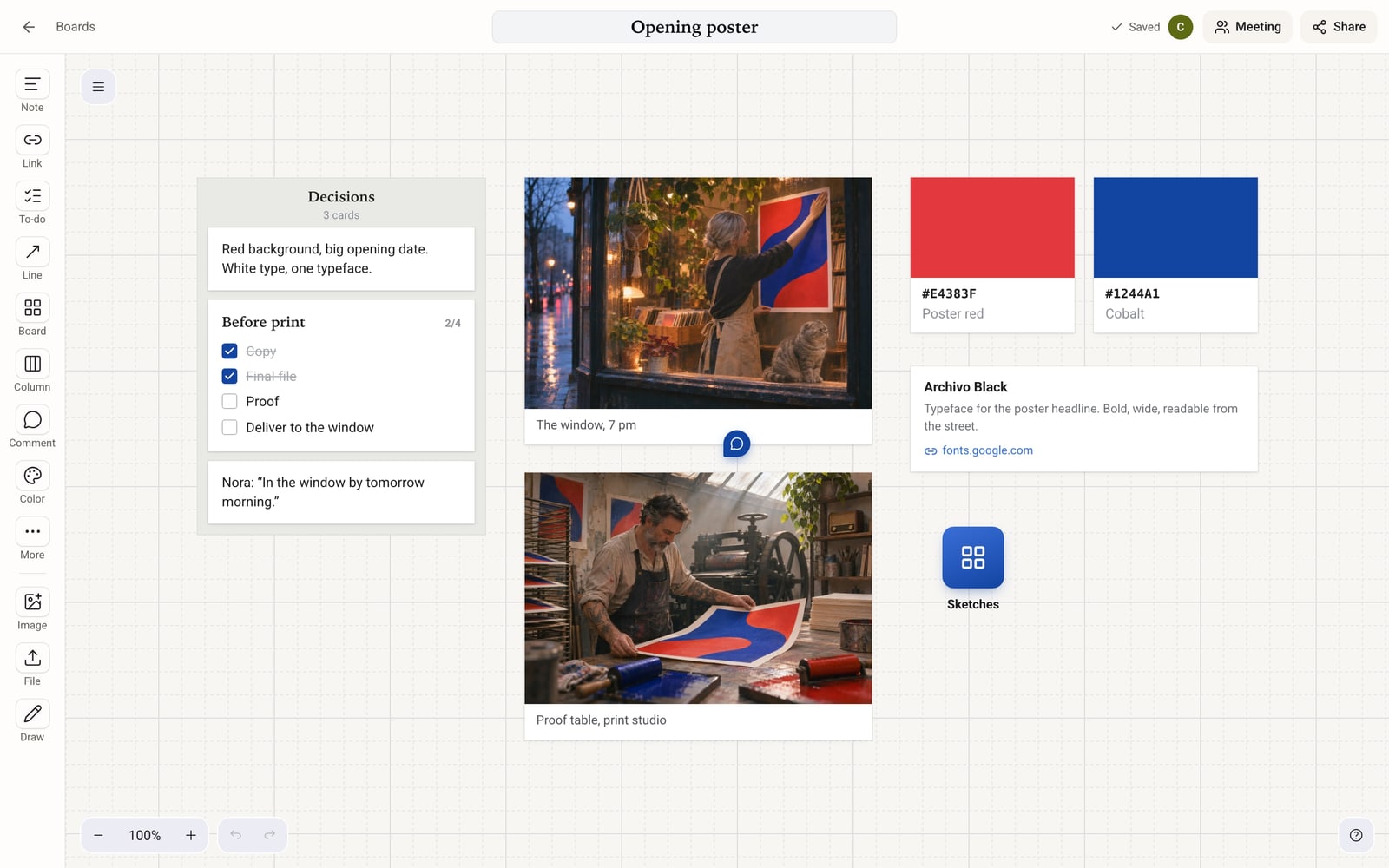
Maru Pano: the “Opening poster” board. The card rail on the left (Note, Link, To-do, Line, Board, Column, Comment, Color, Image, File, Draw); on the canvas a Decisions column with a note and a Before print list at 2/4, photos of the window and the proof table, poster red and cobalt color cards, a link card for the Archivo Black typeface, a Sketches sub-board and a comment pin.
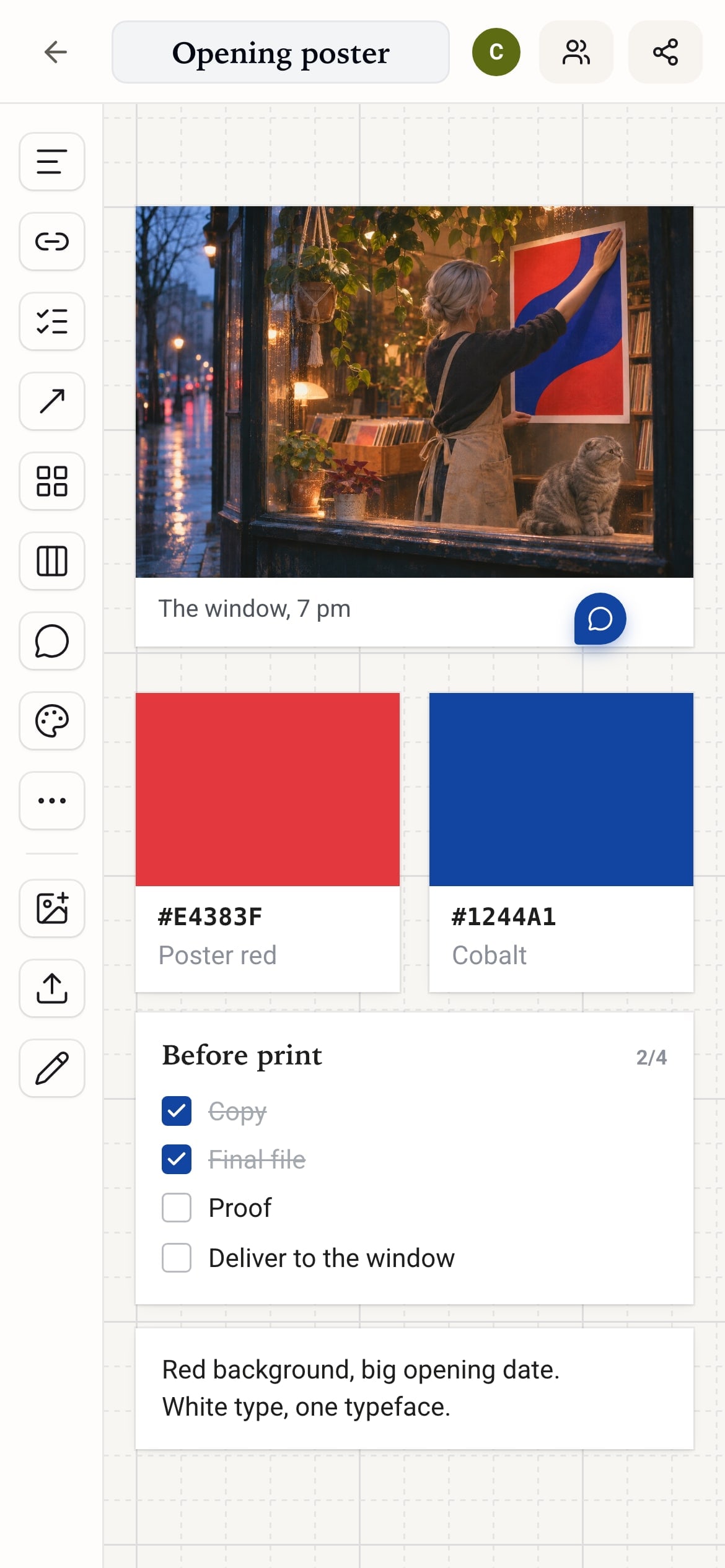
Maru Pano on a phone: the window photo, poster red and cobalt color cards, a Before print list at 2/4 and a note.
A red-haired woman with headphones works on a laptop in a bookshop café on a rainy day.

Maru MailIn the app

Maru Hub’s mail module runs in the Maru Hub app on iPhone, iPad and Mac. Your email accounts sit in one window, and your mail stays on your device. Mail, attachments and passwords don’t pass through a Maru server.

  • Read several accounts in one inbox.
  • Open an email and press “Turn into task”. A task form opens with the subject and sender filled in; save it and the task lands in Proje.
  • Undo a sent email within the time you choose, and snooze what you can’t deal with now.
  • Send mail to the right folder with folder rules.

Maru Mail comes with the Maru Hub app for iPhone, iPad and Mac. Today you can use Proje, Chat and Plan on the web.

Meet Mail
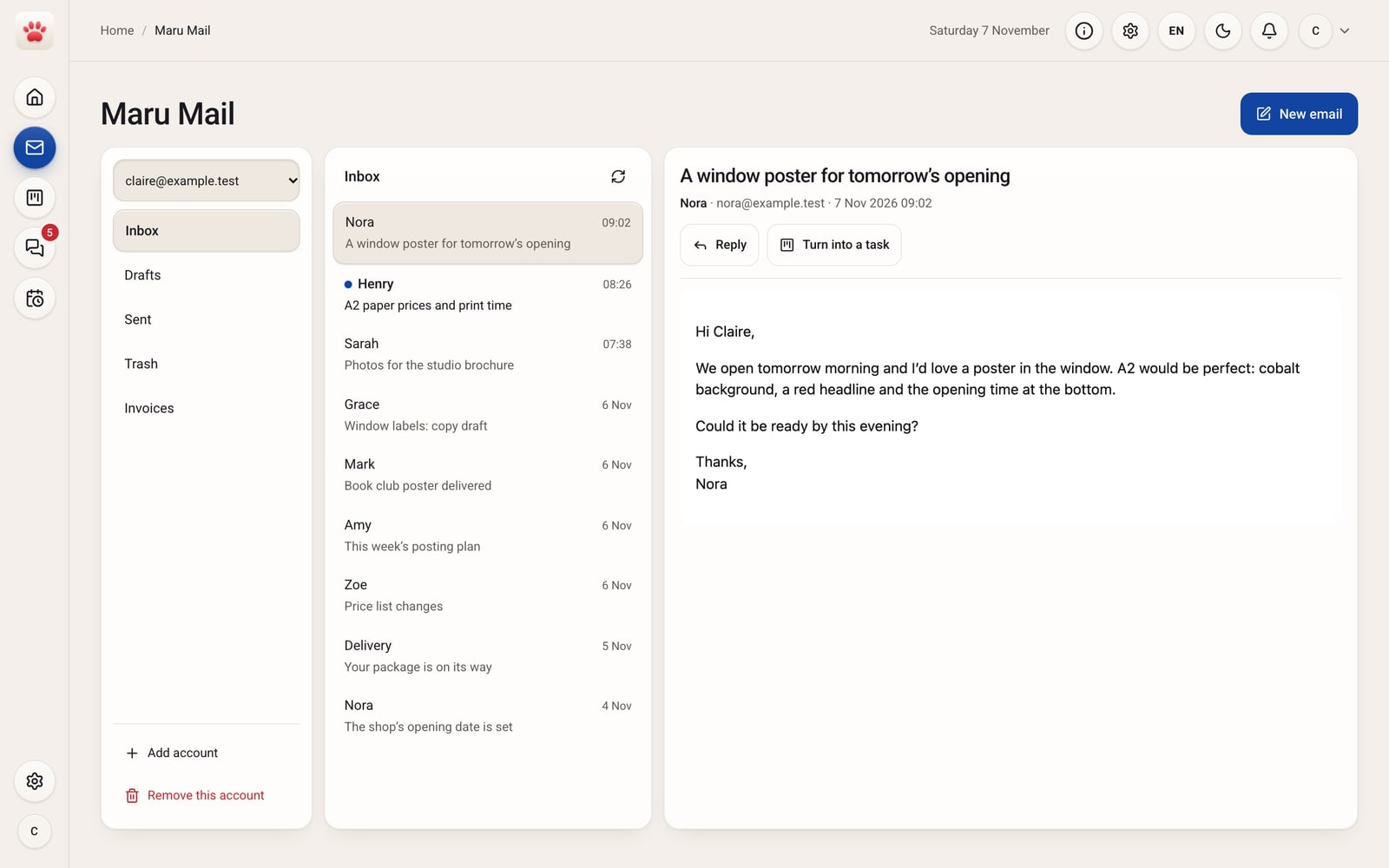
Maru Mail inbox: Nora’s email “A window poster for tomorrow’s opening” is open, with Reply and Turn into a task buttons.

In short: four steps.

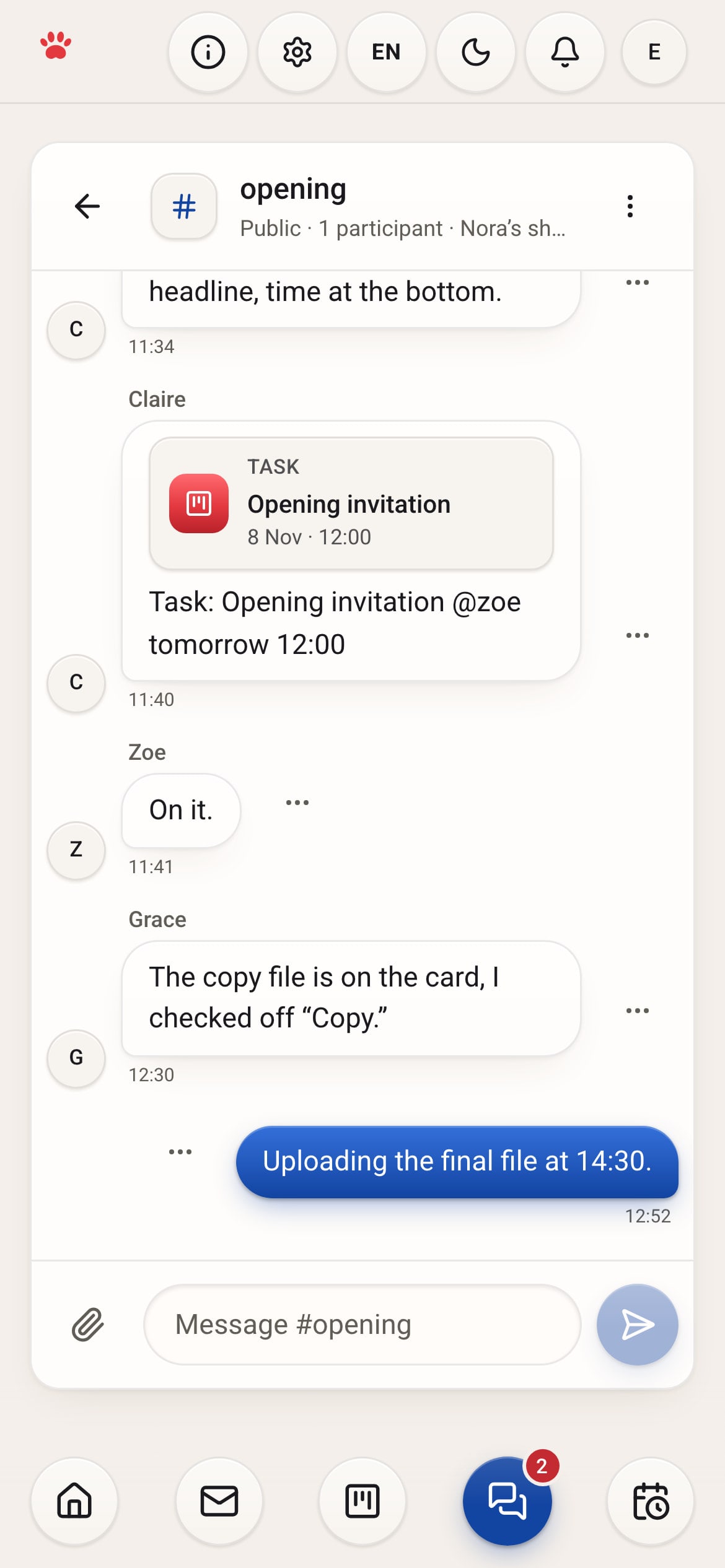
  1. Maru Chat on a phone, #opening: messages from Claire, Zoe and Grace and the Opening invitation card.

    Talk. Get clear on the work with your team in Maru Chat.

  2. Maru Chat on a phone: above “Task: Opening invitation @zoe tomorrow 12:00,” a card prepared for Zoe with a Create and send button.

    Turn it into a task. Create a task from a message, with an owner and a due date. It lands on the board in Maru Proje.

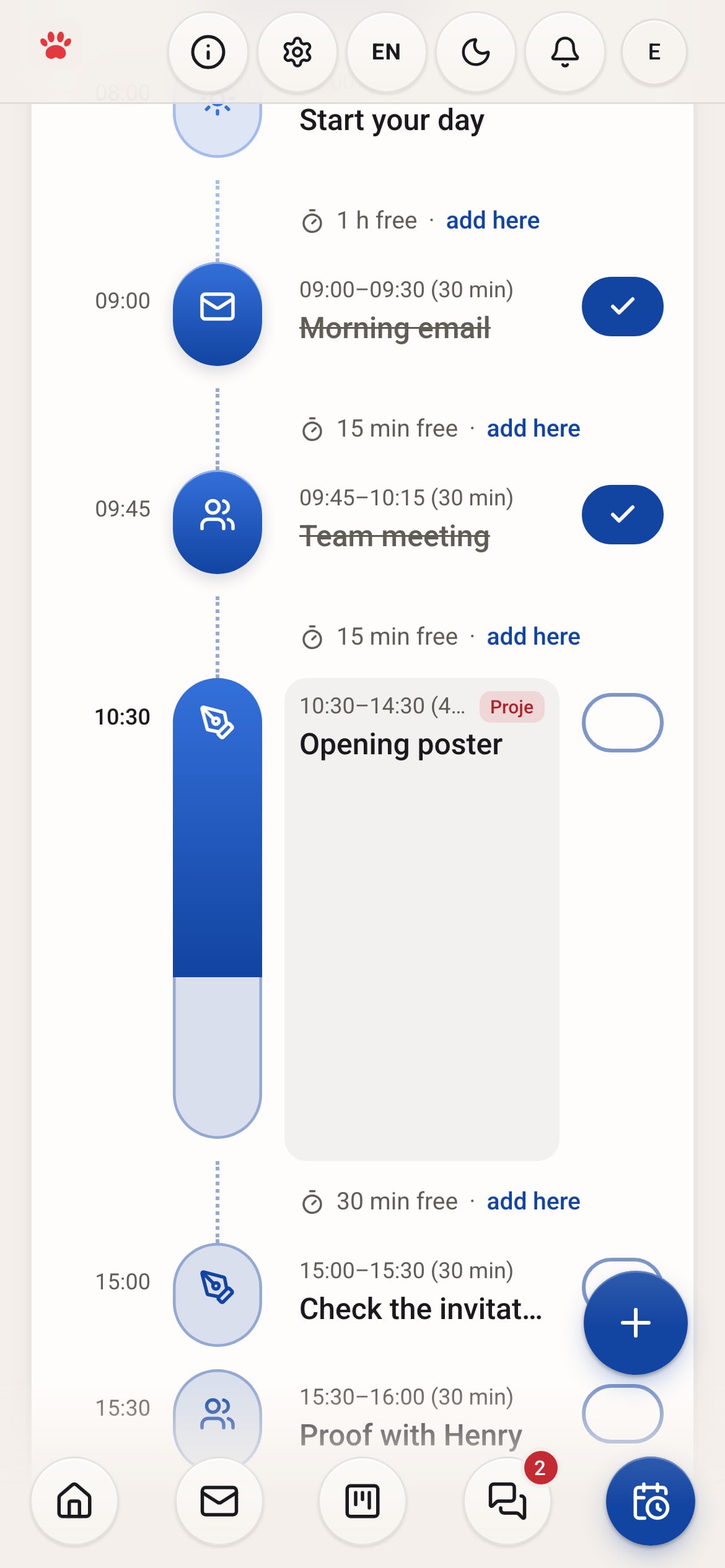
  3. Maru Plan on a phone: the Opening poster at 10:30, tagged Proje, then Check the invitation.

    Plan. Place the task at an hour of your day in Maru Plan.

  4. Claire’s Maru Plan on a phone: 6/6 done, with a check mark on every row.

    Finish. Check it off when it’s done. You and your team see progress in the same place.

To begin, create your account, set up your workspace and invite your team.

Run all your work from one place.

New0/3

Try Maru free for 14 days.

YouToday

To-dos

  • Add your first task
  • Invite your team
  • Plan your day
Try free for 14 days

Your tasks and messages stay when the trial ends.